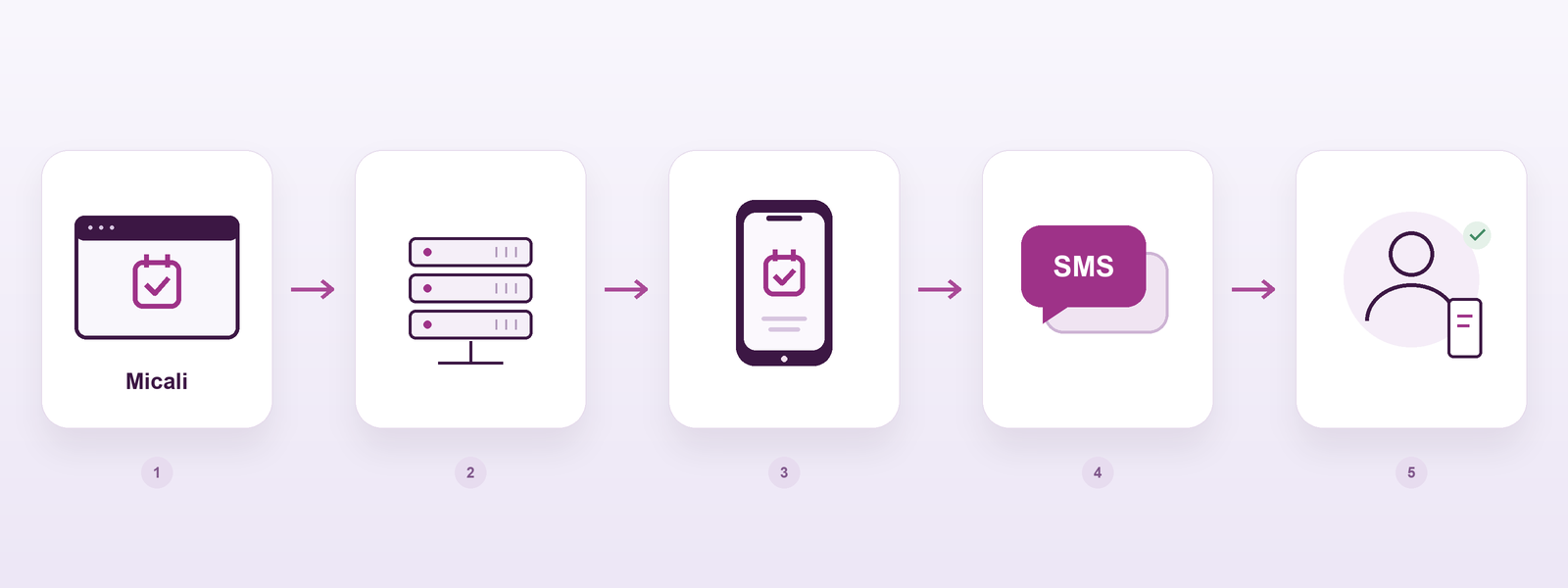
SMS messages from Micali can now be sent directly from your Android phone. Micali SMS connects your phone to your account and sends messages through your SIM card. Clients receive texts from your number and can reply to you. The app is available in multiple languages.
1. Download the app under Email / SMS
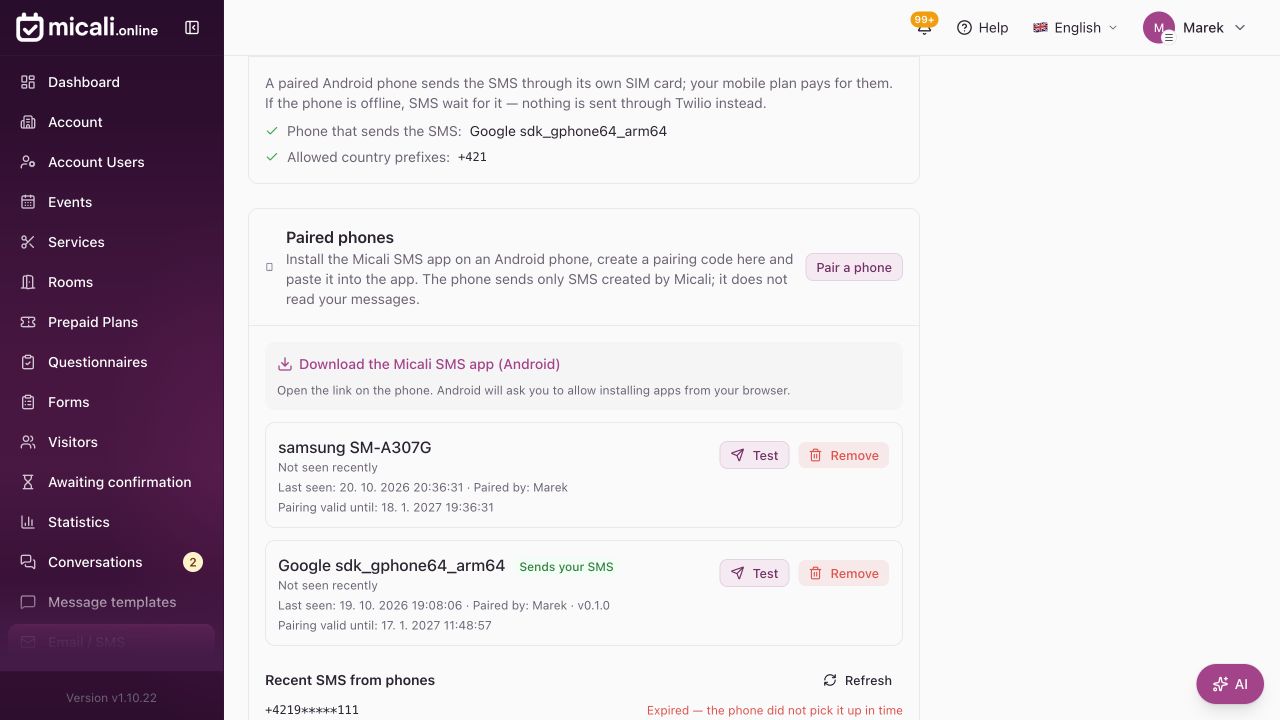
Sign in to your Micali account and open Email / SMS in the left menu. Under Paired phones, click Download Micali SMS app (Android). Open the link on the phone you want to use for sending texts and download the installation file.
2. Confirm installation outside Google Play
The app is not yet available on Google Play. When you open the downloaded file, Android may initially block installation. Allow installation from the browser you used and continue. If an additional warning offers an option to proceed, confirm that you want to install the app despite the warning. Button names vary by phone and Android version. Use this procedure for the app downloaded through your Micali account.
3. Pair your phone with your account
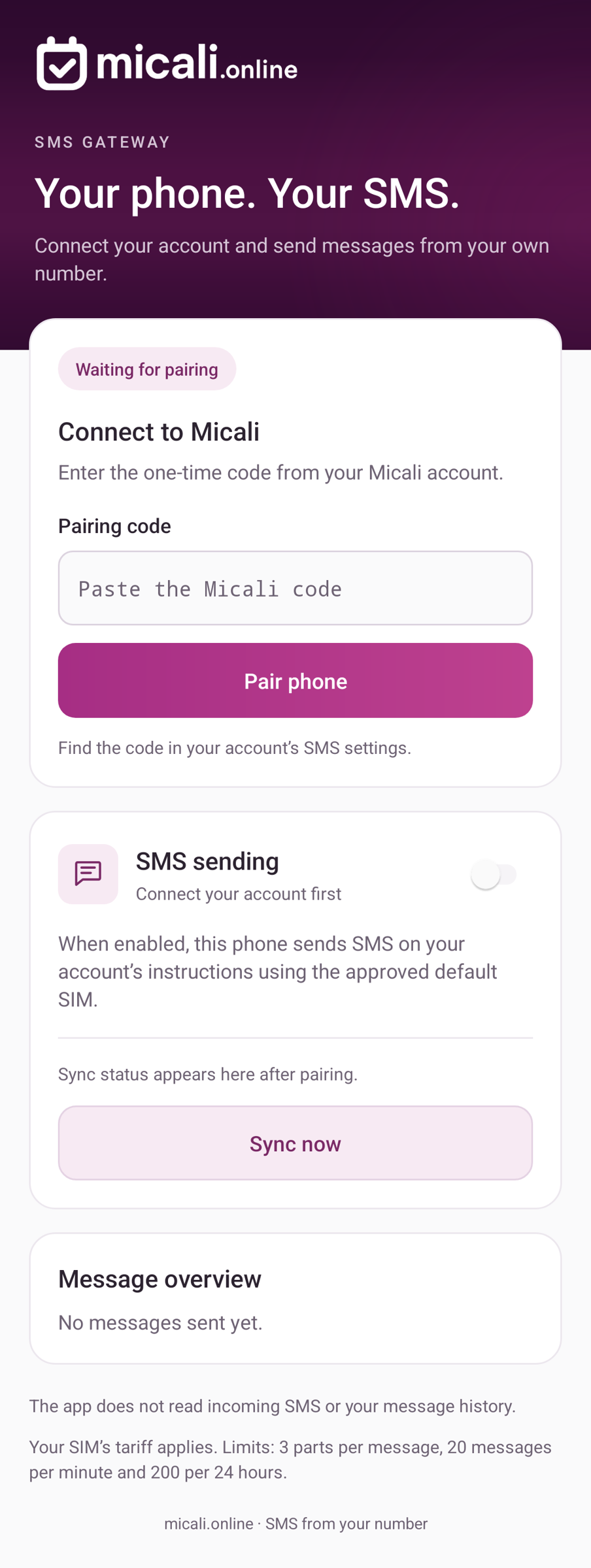
On the website, under Paired phones, click Pair phone. A one-time code with a limited validity period appears. Open Micali SMS on your phone. Under Connect to Micali, paste the code into Pairing code and tap Pair phone. If the code expires, generate a new one on the website.
4. Enable SMS sending
After pairing, turn on the switch under SMS sending. Grant Android permission to send SMS, then turn the switch on again if needed. If you use two SIM cards, choose a specific default SMS SIM in your phone settings; “Ask every time” is unsuitable for automatic sending. Your mobile plan’s SMS rates apply.
5. Select your phone on the website and test it
Return to Email / SMS on the website. Under SMS service, click Edit, select Android phone (own SIM), choose the paired phone and save. Click Test beside the phone, check the recipient’s number and send a test SMS, for example to your second number. Follow its status on the website.
What does your phone need while in use?
Keep the phone switched on, connected to the internet and equipped with a working SMS-capable SIM. Sending must remain enabled in the app. If the phone is unavailable, a message may not be sent in time. Check the phone and recent SMS statuses under Email / SMS. The app does not read incoming SMS or your message history. Client replies arrive in your phone’s usual messaging app. You can pause automatic sending at any time using the switch in Micali SMS.