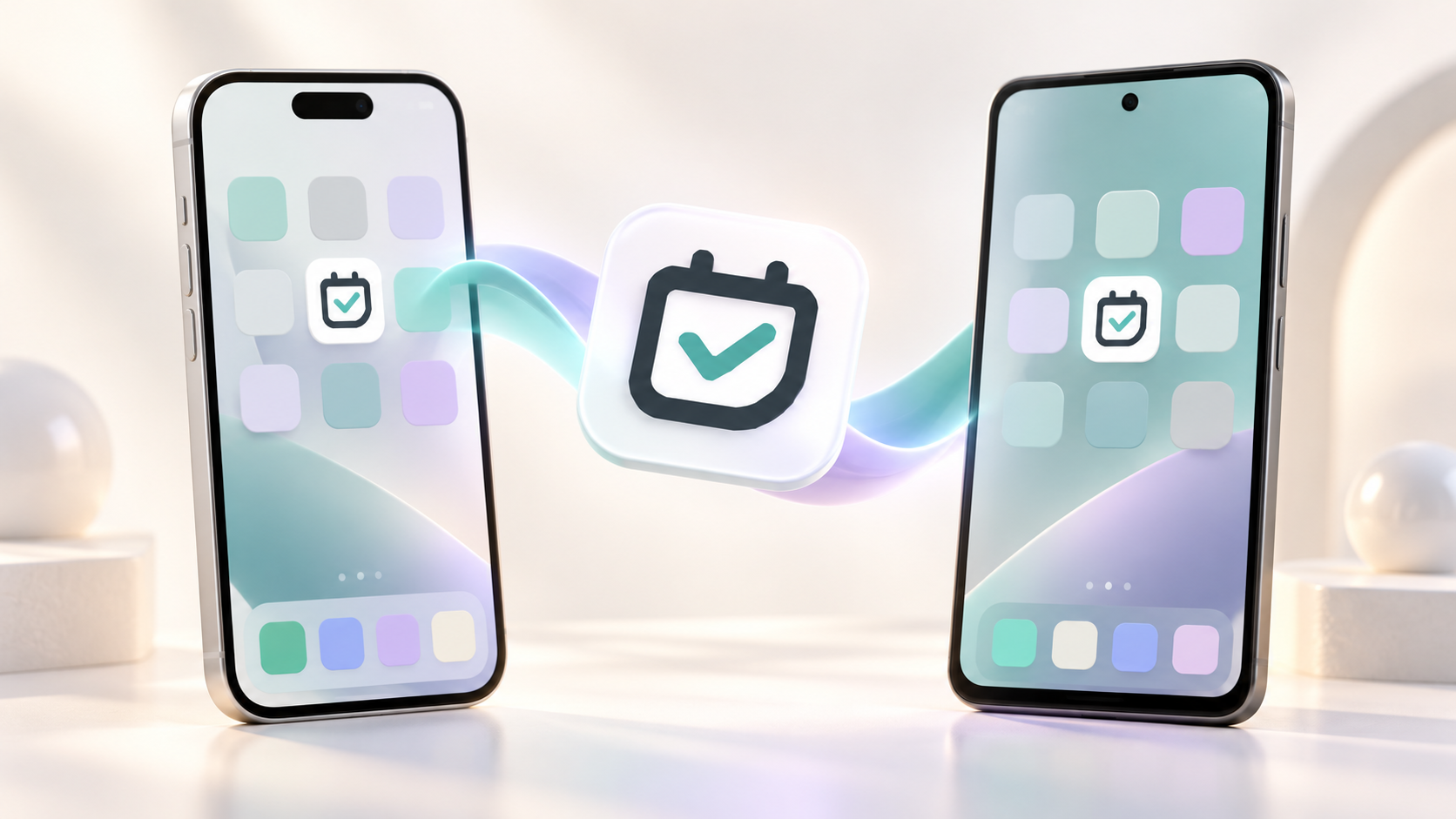
Your bookings should be easy to reach, wherever you are. Add Micali to your phone’s home screen and open it from an icon, just as you would an app.
Why we chose a web app
Micali is built to adapt to your phone, tablet and computer. We believe a separate app-store download is unnecessary for this experience: the same web app already puts your bookings, schedule and customers within reach. On supported devices, adding it to your home screen lets it open in its own app window.
- Open Micali with one tap, without typing the address again.
- Use the same account on your phone and computer.
- Get improvements through the web app, without updating a separate Micali app from a store.
iPhone: add Micali with Safari
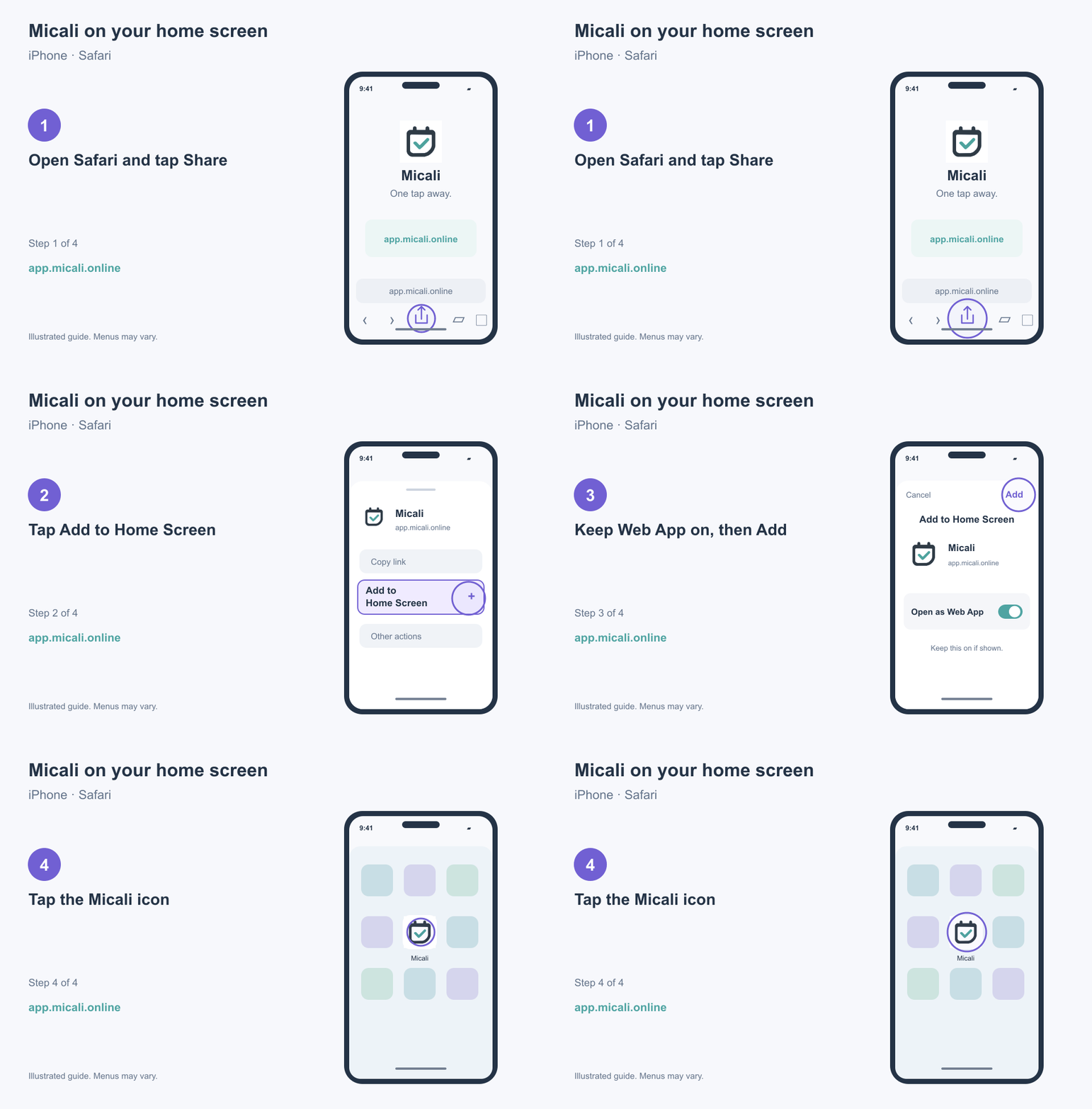
- Open Safari and go to app.micali.online.
- Tap Share — the square with an upward arrow. Depending on your Safari layout, open the page menu first, then choose Share.
- Scroll through the sharing options and tap Add to Home Screen.
- If Open as Web App appears, leave it switched on. You can name the icon Micali.
- Tap Add, then find the Micali icon on your home screen.
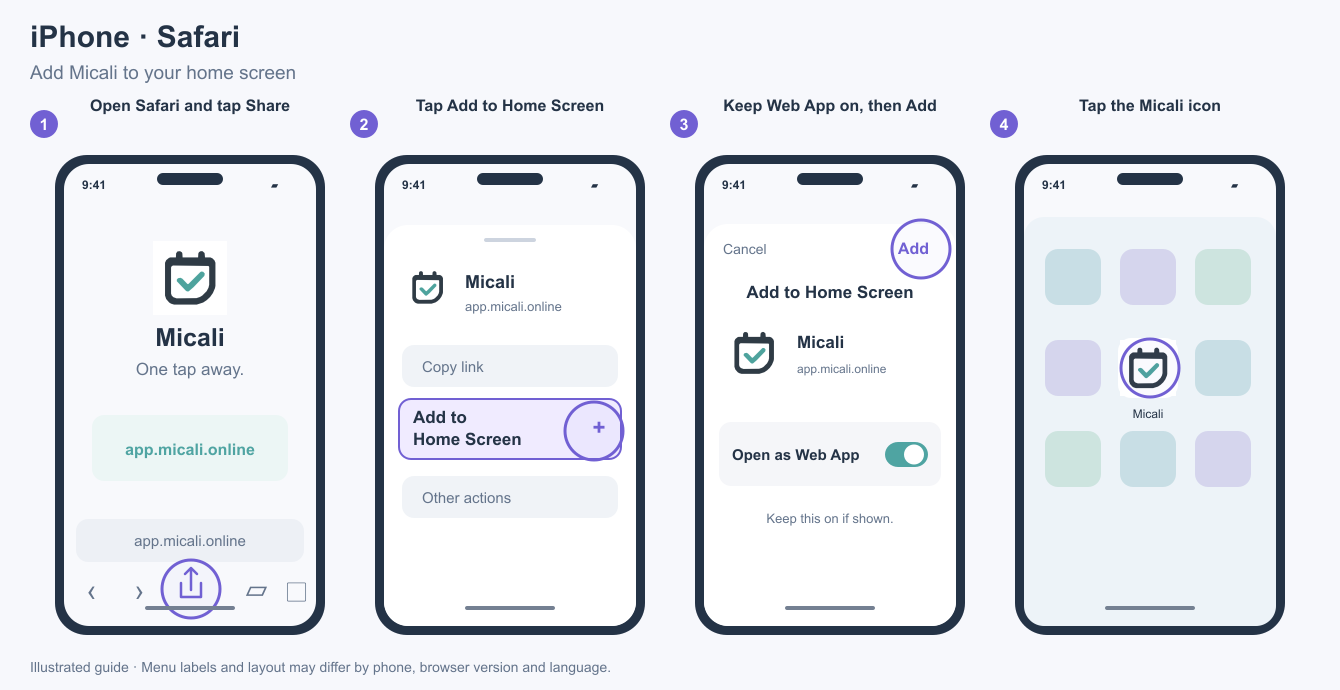
Watch the illustrated steps
Android: add Micali with Chrome
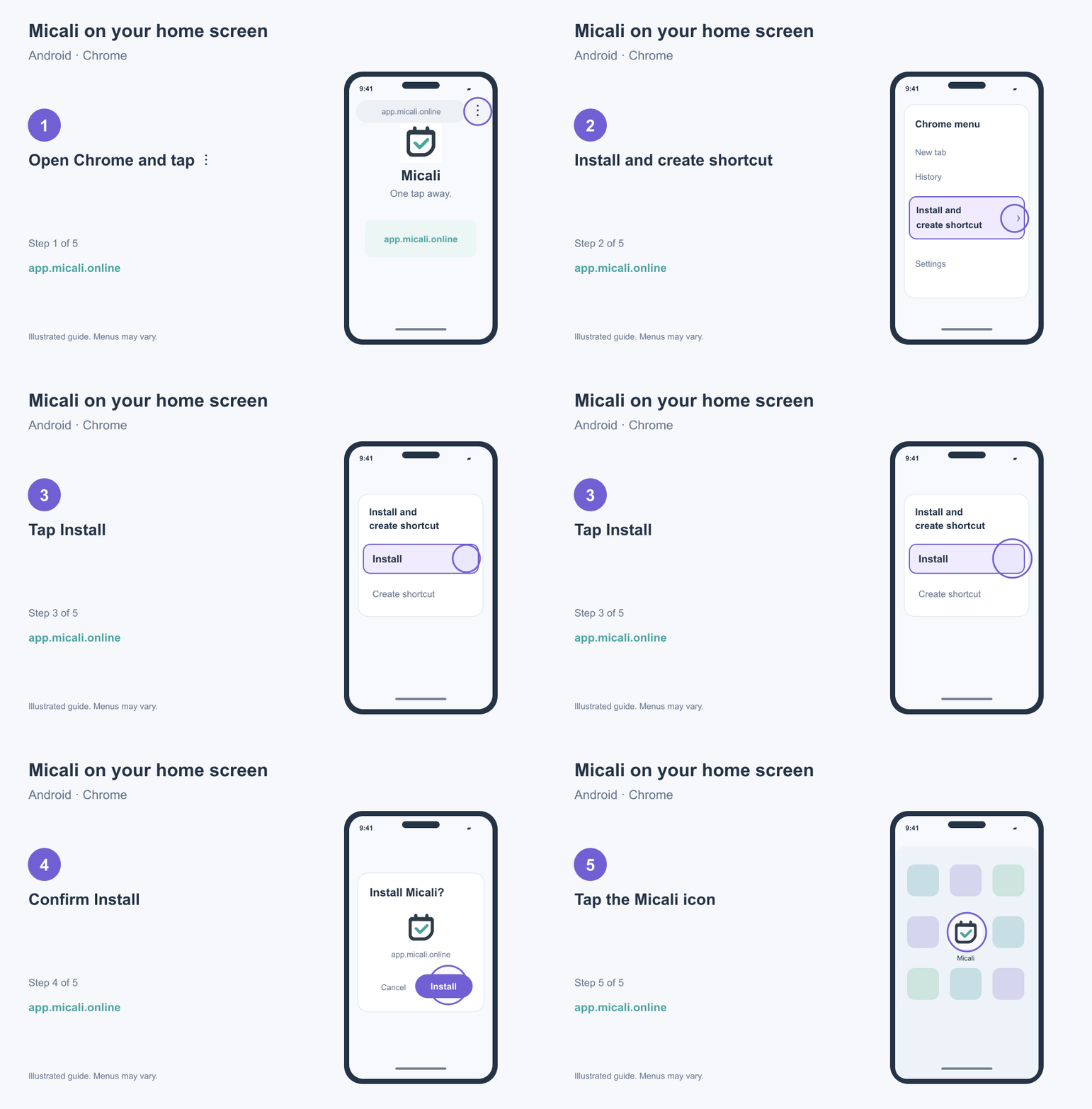
- Open Chrome and go to app.micali.online.
- Tap the three-dot menu beside the address bar.
- Choose Install and create shortcut → Install. Depending on your Chrome version, the option may be called Install app or Add to Home screen.
- Confirm the on-screen instructions, then find the Micali icon among your apps or on your home screen.
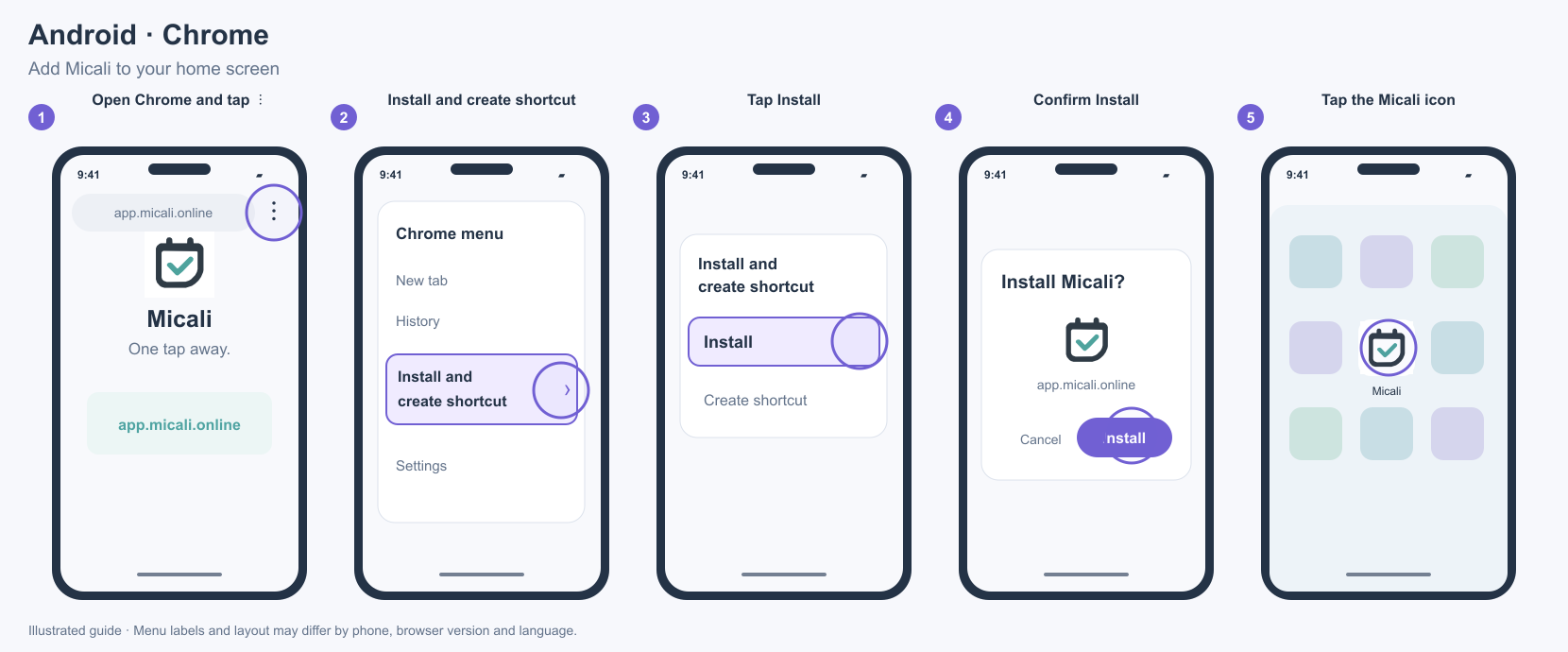
Watch the illustrated steps
Open the icon and sign in
Tap your new Micali icon and sign in if asked. Your existing account and data remain the same. You can switch between phone and computer whenever you need to. Micali needs an internet connection to load and manage your bookings.
Can’t find the option?
If a link opened inside Instagram, Facebook or an email app, open it in Safari on iPhone or Chrome on Android first. On iPhone, you can also find Add to Home Screen under Edit Actions in the share menu. The illustrations show the steps, rather than an exact screenshot of every phone version.
Open Micali and add it to your home screen
Official instructions: Apple · Google Chrome.