
Suppose you run a weekly class and want to share next month’s dates with people who booked recently. You could pull up every session and build a recipient list by hand. In Micali, you can save that audience as a dynamic mailing list and reuse it the next time you have something to share.
For a group you want to keep in touch with regardless of bookings, use a static mailing list. Both let you write one email to a group of visitors. The difference is how the group is chosen.
Static lists: choose the people yourself
A static list keeps the people you add until you remove them. Use it for a group such as your workshop volunteers, a group of regulars you’ve invited to hear about new dates, or the participants of a one-off programme.
Start with Add visitors to pick people by hand, or use Add from bookings to add a group from selected events, services or rooms in one step. That import is a snapshot: a booking made later won’t automatically add someone to the list.
Dynamic lists: let booking rules choose the group
A dynamic list uses rules about what someone booked and when it was scheduled. For events, services and rooms, you can include all, select specific ones, or leave that category out. You can look back over a period such as the last five days, two weeks or month, or use the entire booking history. Upcoming bookings can be included with a separate option.
Micali recalculates the list when you open it and again when you press Send. You can still use Add visitors to keep someone on the list regardless of the rules. Someone who qualifies both ways appears once.
Example: email people who had a booking in the last two weeks
- Go to Visitors → Mailing lists → Lists and select New list.
- Name it Recent class bookings and choose Dynamic as the list type.
- Choose Selected events and pick the class you want to follow up on. Leave other sources out if they don’t belong in this audience.
- Under How far back, choose Last 2 weeks. Leave Also people whose booking is still ahead off, then select Create list.
- Open the list to review who matches. Select Send email, write your message, and send it when you’re ready.
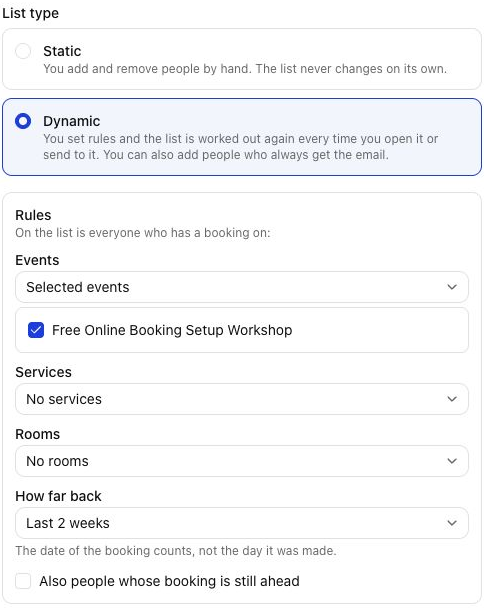
For example, if Maya booked three weeks ago for a class that took place yesterday, she matches. If she booked yesterday for a class next week, that booking doesn’t match while the upcoming option is off. The rule looks at the scheduled class date. It doesn’t check whether Maya attended.
If you send another update next week, the two-week window moves with you. People with newly matching bookings can be included, older bookings can fall out of the window, and anyone you added by hand stays on the list. Every email is still a separate send: the rules update the audience, not the sending schedule. Visitors without an email address are skipped.
Saved emails: write it once, use it again
A mailing list decides who gets the email. A saved email gives you the subject and message to start from, so you don’t have to write the same update from scratch each time.
- Go to Visitors → Mailing lists → Saved emails and select Create email. Give it a name, write the subject and message, and save it.
- Open a static or dynamic list and select Send email. Pick your message under Use a saved email to fill in the subject and text.
- Update any dates, links or details for this send, then review the message and send it when ready.
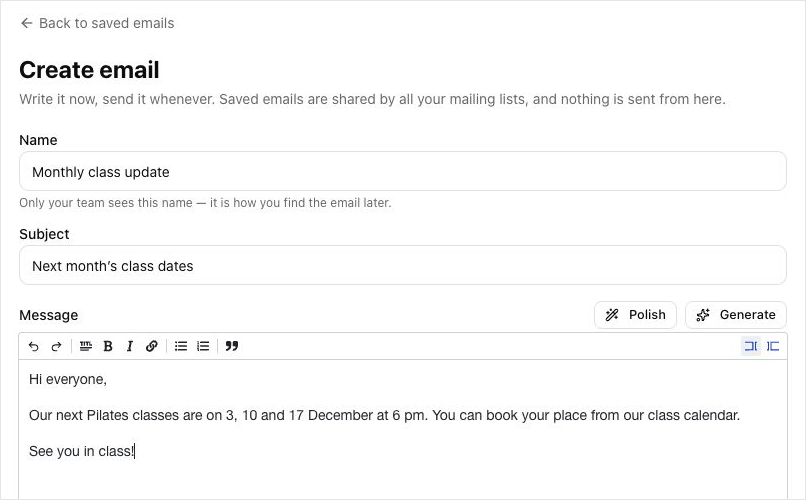
For example, save a message called Next month’s class dates. Each month, load it for your Recent class bookings list and swap in the new dates. Saving the message makes it available for later; each send still starts when you choose to send it.
Three groups worth saving
- Recent class bookings: Share next month’s timetable with people who booked one of your classes in the last two weeks.
- Studio bookings: Send a note about new equipment to people with a recent booking for a particular room.
- Event volunteers: Keep a static group for arrival instructions and updates, even if the volunteers don’t book a ticket.
Open Micali and start with a group you find yourself looking up more than once. If the people stay the same, make it static. If the bookings decide who belongs, make it dynamic.