
Micali now has a Conferences section for moderated discussions with the audience. Attendees open a link or scan a QR code and type their question on their phone. The moderator sees all questions in one place and can put the selected question on screen so the whole room can see it while it is being answered.
We added this feature for those occasions when there are only a few minutes left for discussion at the end of a talk. Only a handful of people get the microphone, and speaking in front of a full room can be daunting. Now someone in the back row can send in a question too. The moderator chooses what the speakers have time to cover live and can follow up on the remaining questions in writing.
Conferences can also help instructors and teams running internal meetings. At a workshop, an instructor can collect questions while participants are doing a hands-on activity and go through them with the group at the end. Before an internal meeting, you can ask people to submit questions ahead of time so you have time to prepare your answers.
Set up the discussion and choose who can take part
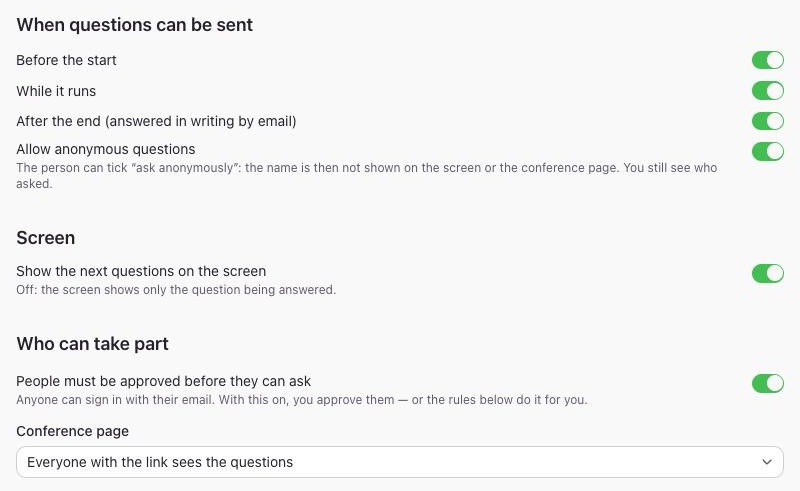
In the admin area, go to Conferences → New conference. Enter a name and an optional description. Choose whether to accept questions before the conference starts, while it is running, or after it ends. You can enable each phase independently. You can also set time limits for the whole discussion and for each answer, for example 20 minutes and three minutes respectively.
Choose whether anyone with the link can see the questions or only approved participants. You can separately decide whether participants need approval to submit questions. Approve them manually or set rules based on a booking for a particular event, service, procedure, or room, or on membership of a mailing list.
Send the audience a link or display a QR code
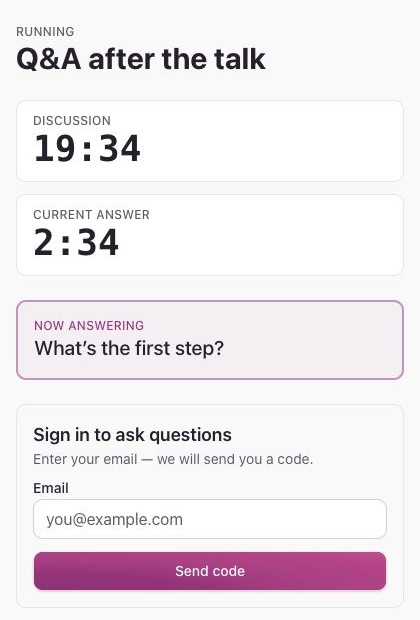
Once you have saved the conference, open Share / QR code. Send the link in advance or project the QR code in the room. Attendees open the page in their browser, sign in with a code sent by email, and can send a question once submissions are open and they have access. You can also add attendees and send them personal invitations from the People tab. A personal link signs them directly into that conference.
If you allow anonymous questions, attendees can select Ask anonymously when submitting a question. Their name is hidden on the conference page and on the projected screen. The organiser can still see it in the admin area.
Moderate the questions and display the one being answered
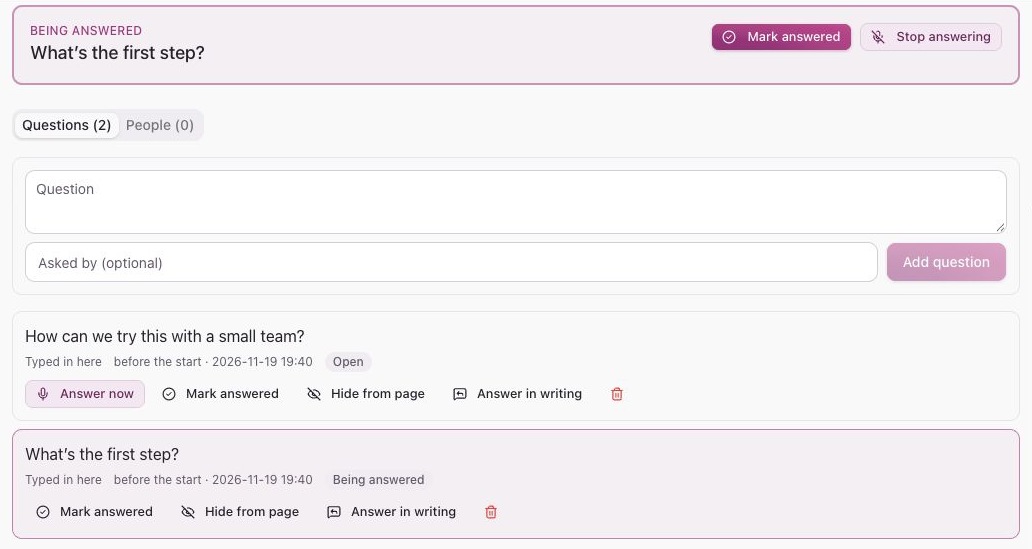
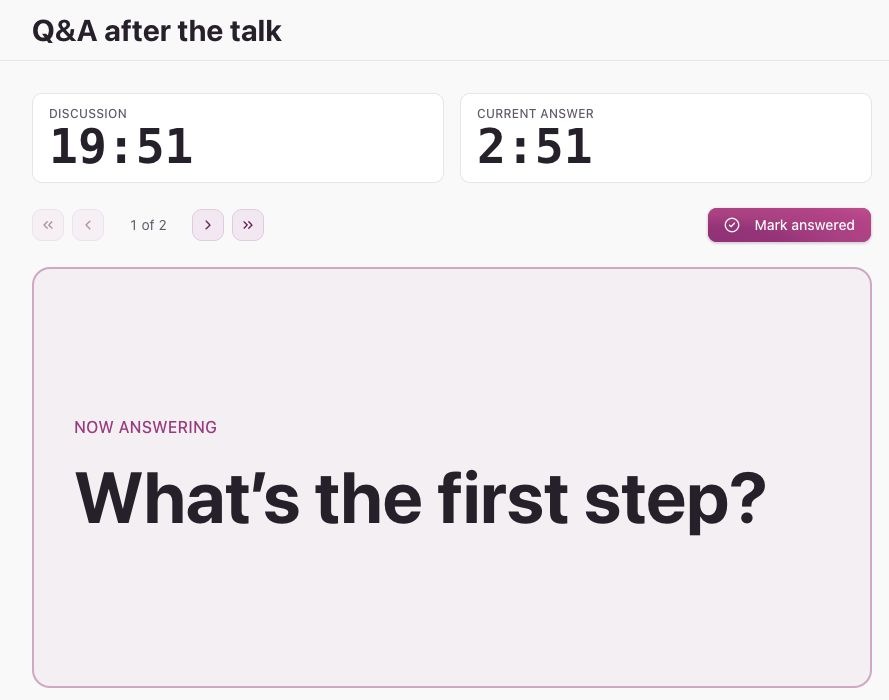
On the conference detail page, click Start. If there are already open questions in the list, the first one is displayed. To select another question, use Answer now. You can add a question asked aloud by hand and hide an off-topic one from the page. Mark a question as answered once you have covered it so you can see which questions are done.
Go to Screen → Full screen to open the view for a projector or a shared screen. It shows the current question and the time for both the discussion and the answer. If you enabled it in the settings, the audience can see the upcoming questions too. The discussion can continue when the timer runs out. Click End to finish it.
Answer after the conference too
If you did not get to every question, choose Answer in writing in the admin area. For a question submitted by an attendee, you can send the answer by email. Only the person who asked can see the answer on the conference page. If you leave submissions open afterwards, attendees can add a question they only thought of on the way home.
Before your next talk or panel, open Micali, create a conference, and add its QR code to your opening slide. The audience can send questions as soon as you open submissions.