
A customer calls to say their booking confirmation never arrived. Or they received a reminder with an unexpected time. With Sent messages in Micali, your team can open the actual message and check what went out, to whom, and when.
Find the message your customer is asking about
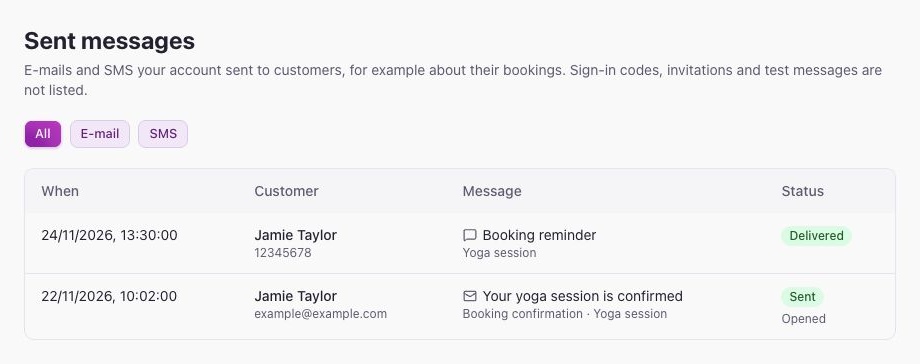
In your account’s admin menu, open Sent messages below Message templates. Admins and root admins can see the customer emails and SMS associated with their account, including booking confirmations, reminders, and cancellations. Choose All, E-mail, or SMS to narrow the list by channel. Start with the time window and look for the customer and message.
Open the message and check what it said
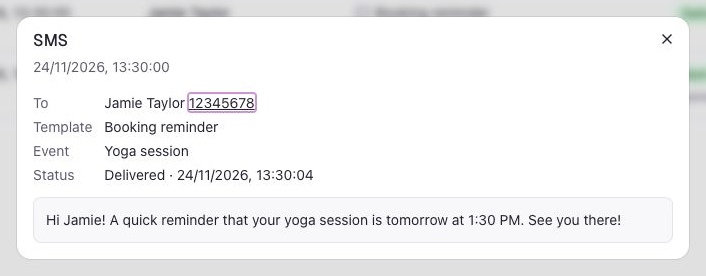
Select a row to see the recipient, the available status and timestamps, and the content of the email or SMS. The detail also shows the template and event when they are available. If a customer says the time was wrong, compare the text they were sent with the current booking to see what actually appeared in the message.
Use the status to decide what to check next
Sent records that Micali sent the message. Delivered means a delivery confirmation was received where the channel provides it. Waiting to be sent means the message is still queued, and Not sent indicates that it didn’t go out. For an email that shows as sent, check the recipient address with the customer and ask them to look in their spam or junk folder. If an open was recorded for an email, Micali shows it too.
This history shows customer messages from your account. Sign-in codes, team invitations, and test sends are kept out of this view. Open Micali and go to Sent messages the next time you need to verify what a customer was sent.