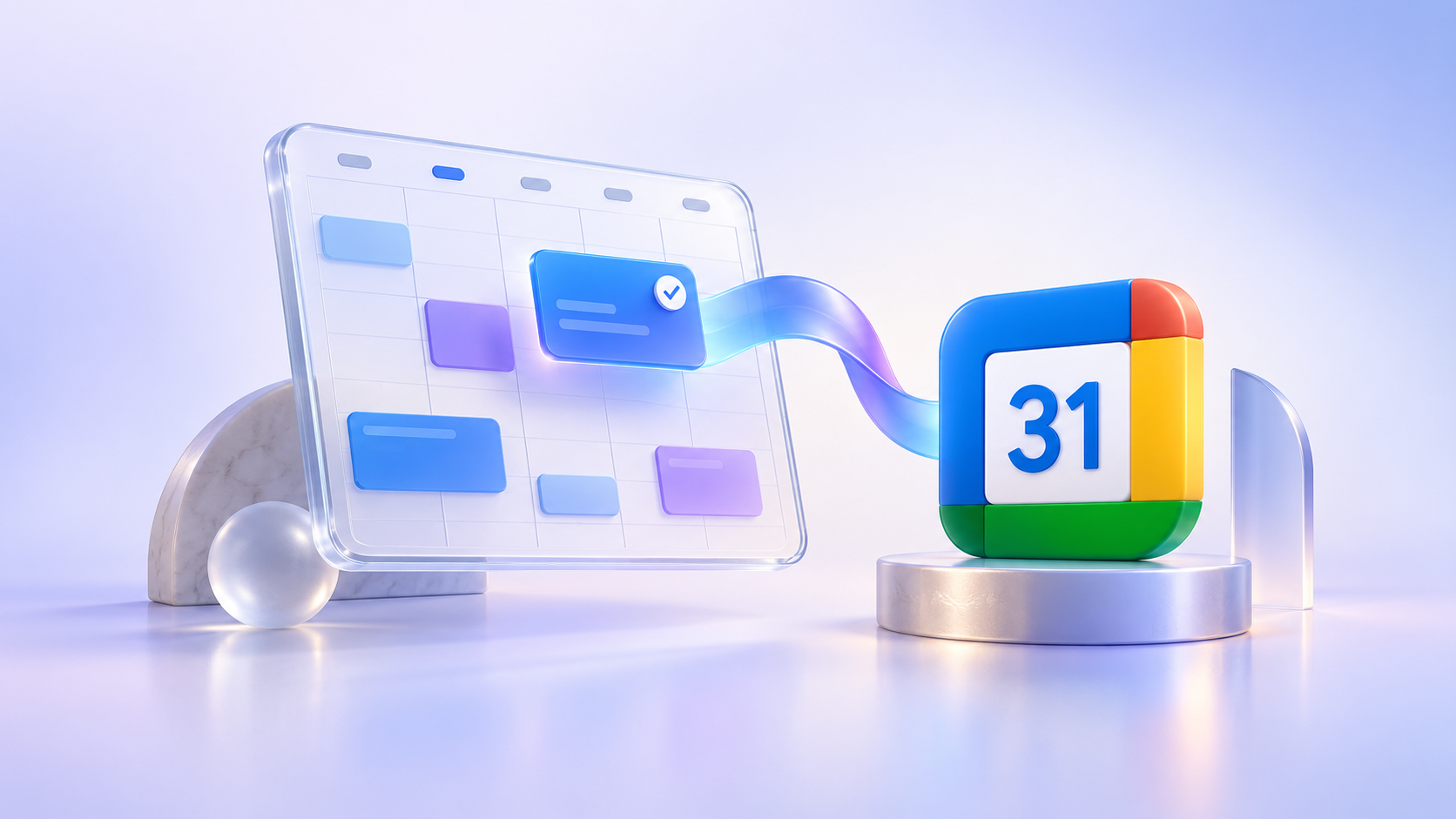
Your bookings are in Micali. The rest of your week may already be in Google Calendar. Connecting the two helps you keep your schedule together, including when a booked appointment moves to a new date.
You can now connect Google Calendar to Micali, choose a calendar for your events and services, and keep synchronised booking dates up to date. Calendar events can be created on their own; a separate switch lets you add a Google Meet link for online meetings.
Connect Google Calendar in your account or profile
You can connect Google Calendar from Account → Google Calendar. Connect the Google accounts whose calendars you want to use for your bookings.
Each user also has a connection option in Profile → My Google Calendar. Connect your own Google Calendar there, then select it for the events, services, and procedures you run.
Choose the calendar for your events and services
Connecting a Google account is the first step. Next, choose where you want to use its calendar.
In an event’s settings, enable Add to Google Calendar, then choose the Google account and Calendar. Each event date gets one calendar event, created with its first confirmed booking and shared by everyone booked on that date. Enable Also create a Google Meet link separately if you want an online meeting.

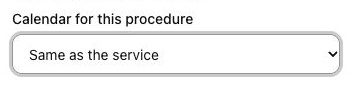
For services, enable Add to Google Calendar in the service settings. Each confirmed booking gets its own calendar event. A procedure can use the service’s calendar or a different connected calendar. Google Meet is optional and is enabled with the separate Also create a Google Meet link switch in the service settings.
Reschedule in Micali, and the calendar date updates too
If the date of a synchronised booked appointment changes in Micali, the corresponding appointment in Google Calendar changes too.
For example, a lesson booked for Tuesday is moved to Thursday in Micali. The appointment in the selected Google Calendar updates to the new date, so your calendar reflects the rescheduled booking.
You do not have to correct the old date in Google Calendar yourself after moving the booked appointment in Micali.
Make appointment changes in Micali. Synchronisation works from Micali to Google Calendar. Changes made directly in Google Calendar are not transferred back to Micali.
Get started in three steps
- Connect your Google account. Open Account → Google Calendar or Profile → My Google Calendar and use the connection button.
- Choose where to use it. Enable Add to Google Calendar for the relevant event or service and select its calendar. For a procedure, keep the service’s calendar or choose a different one. Enable the separate Google Meet switch only when you want a meeting link.
- Manage booking dates in Micali. When a synchronised booked appointment is rescheduled, its date updates in the selected Google Calendar too.
For teachers, coaches, and anyone managing appointments, the connection means less calendar upkeep. Use calendar synchronisation for in-person appointments too, and add Google Meet when you need an online meeting.
Open Micali to connect your Google Calendar and set it up for your events and services.
Planning online appointments? Read our guide to automatic Google Meet links to learn how to enable the separate meeting switch.