Online booking is not just a calendar on a website. For a small business, it is the path a customer takes from “I want this” to “I am booked and I know what happens next”. If that path is clear, you get fewer messages, fewer mistakes and fewer missed appointments.
This guide walks through the setup in the order that usually works best: define what people can book, set availability, collect the right details, prepare confirmations and reminders, then share the booking link in the places customers already use.
1. Decide what people should be able to book
Start with the offer, not the software. Before you touch settings, write down the things customers should be able to reserve online.
For most small businesses, bookings fall into one of two groups:
- Services: one customer books one time slot, such as a haircut, massage, consultation, lesson or repair appointment.
- Events or classes: several people book the same time, such as a workshop, yoga class, training session or webinar.
Keep the first version simple. If you offer twenty variations, start with the five to eight that customers ask for most often. You can always add more later.
2. Give every service a clear duration
Bad durations create messy calendars. If a service really takes 75 minutes, do not force it into a 60-minute slot. If a first visit takes longer than a follow-up, split them into two separate bookable options.
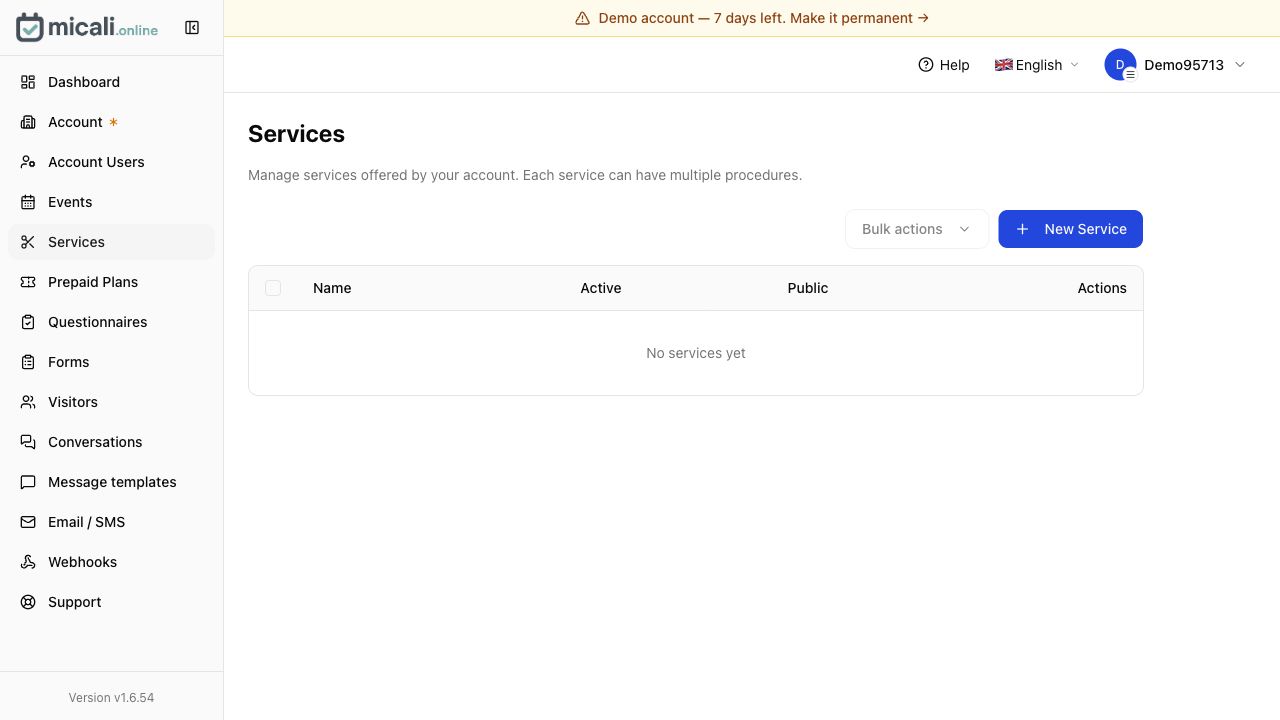
A useful service setup usually includes:
- service name,
- short description,
- duration,
- price or price note,
- who can provide it,
- whether it is public or private,
- any buffer time before or after.
Names should be plain. “Initial consultation, 30 min” is better than “Discovery experience”. “Gel manicure with removal” is better than “Premium hands package” unless your customers already know exactly what that means.
3. Set availability you can actually keep
Do not publish every minute of your working day. Online booking works best when your availability reflects how you want to run the business.
For example, you might keep mornings for existing clients, open afternoons for new bookings, leave ten minutes between services, or block Fridays for longer appointments. The point is not to look maximally available. The point is to make bookings easy without damaging your day.
4. Build a booking page that answers the obvious questions
A good booking page removes hesitation. Before someone books, they should understand:
- what they are booking,
- how long it takes,
- where it happens,
- what it costs,
- what happens after booking,
- how to cancel or reschedule.
Do not make people hunt for the booking action. If the page has a long description, repeat the booking button or link after the important details.
5. Collect only the details you will use
Booking forms are easy to overbuild. Ask only for information that changes how you prepare, price, schedule or deliver the appointment.
A simple default form usually needs name, email, mobile number, service, time and notes. Then add service-specific questions only where they help. A photographer may need location and number of people. A tutor may need subject and level. A salon may need to know if removal or correction work is required.
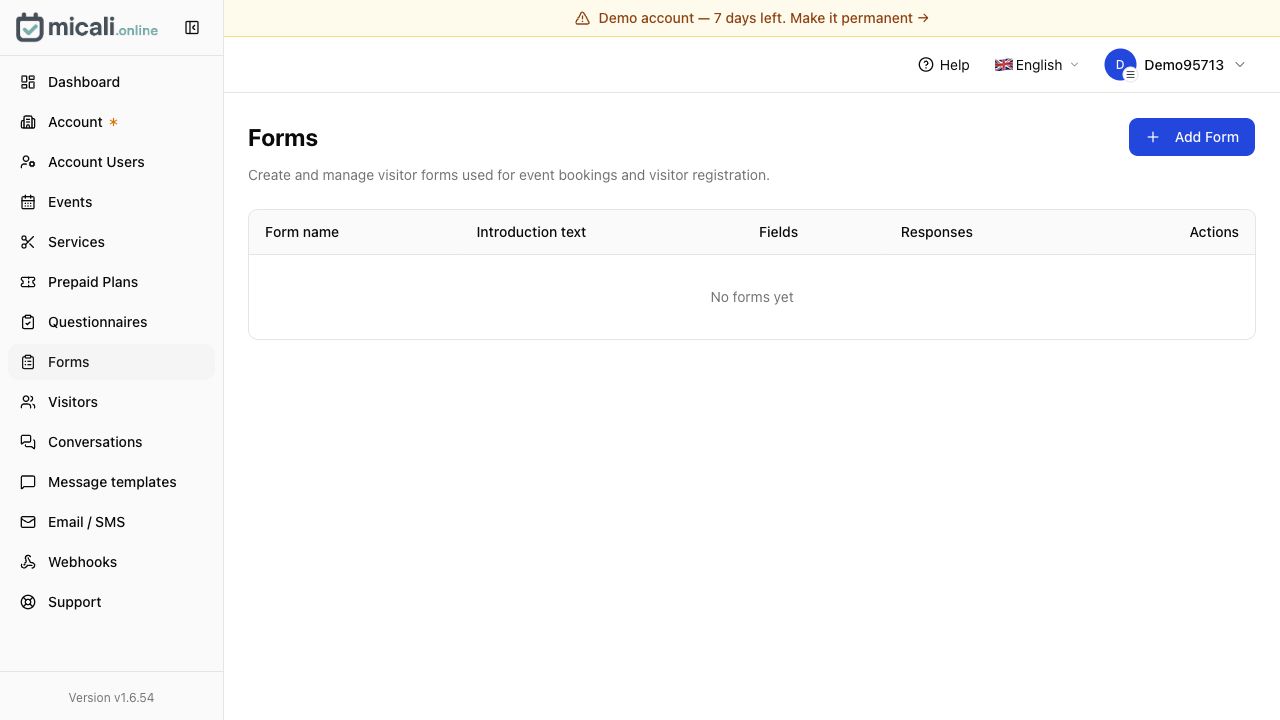
For practical question examples, use our booking form examples.
6. Write the confirmation before customers need it
The confirmation message is part of the booking experience. It should reassure the customer that the booking worked and tell them what to do next.
A strong confirmation includes:
- service or event name,
- date and time,
- location or online link,
- preparation instructions,
- cancellation or rescheduling link,
- contact details if something changes.
If you need wording, start with our booking confirmation email templates.
7. Add reminders before you worry about advanced features
Reminders are one of the highest-impact parts of online booking. Many missed appointments are not deliberate. People simply forget, lose the message or fail to move the appointment when plans change.
A practical reminder setup is:
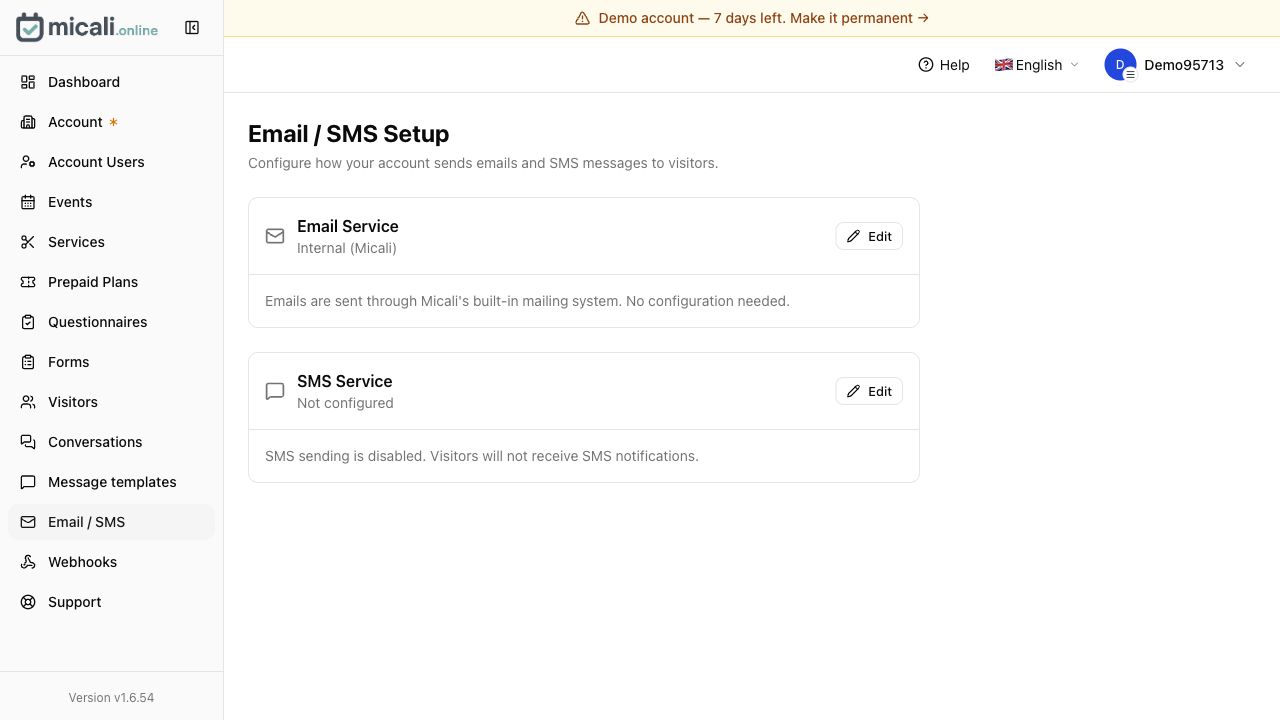
- confirmation immediately after booking,
- email reminder 24 hours before,
- short SMS reminder on the day for time-sensitive appointments.
Keep reminder messages short and specific. Include the service, time and one clear action. If rescheduling is allowed, include the reschedule link in the reminder.
For examples, see our SMS reminder templates and broader appointment reminder templates.
8. Decide your cancellation rules early
You do not need a strict policy on day one, but you do need a clear one. Even a simple rule helps customers understand what is fair.
For example:
Please cancel or reschedule at least 24 hours before your appointment so we can offer the time to another customer.
If no-shows are expensive in your business, consider deposits, card holds or a no-show fee. The key is to show the rule before the customer books, not after there is a problem.
For wording you can adapt, use our cancellation policy examples.
9. Use a waitlist only where it helps
A waitlist is useful when demand is uneven: popular staff members, evening slots, weekend classes, workshops or high-value services. It is less useful if your calendar is mostly open.
When a slot opens, offer it to the best matching person with a clear deadline. Do not message everyone about every opening. That feels noisy and makes the waitlist less trustworthy.
For a practical setup, read how to use a waitlist without annoying your clients.
10. Share your booking link where customers already look
Once your booking page is ready, do not hide it. Put the link in the places where customers already decide to contact you:
- website header and contact page,
- Instagram bio,
- Facebook page button,
- Google Business Profile,
- email signature,
- SMS replies,
- printed QR code at reception,
- follow-up messages after appointments.
The booking link should become the default answer to “Do you have any availability?”
11. Test the flow like a customer
Before you announce online booking, make one test booking from your phone. Check the whole path:
- Can you understand the service choices?
- Is the booking button obvious?
- Are the available times realistic?
- Is the form short enough?
- Does the confirmation explain what happens next?
- Can the customer cancel or reschedule without messaging you?
If anything feels unclear during the test, fix it before sending real customers there.
What micali.online can manage
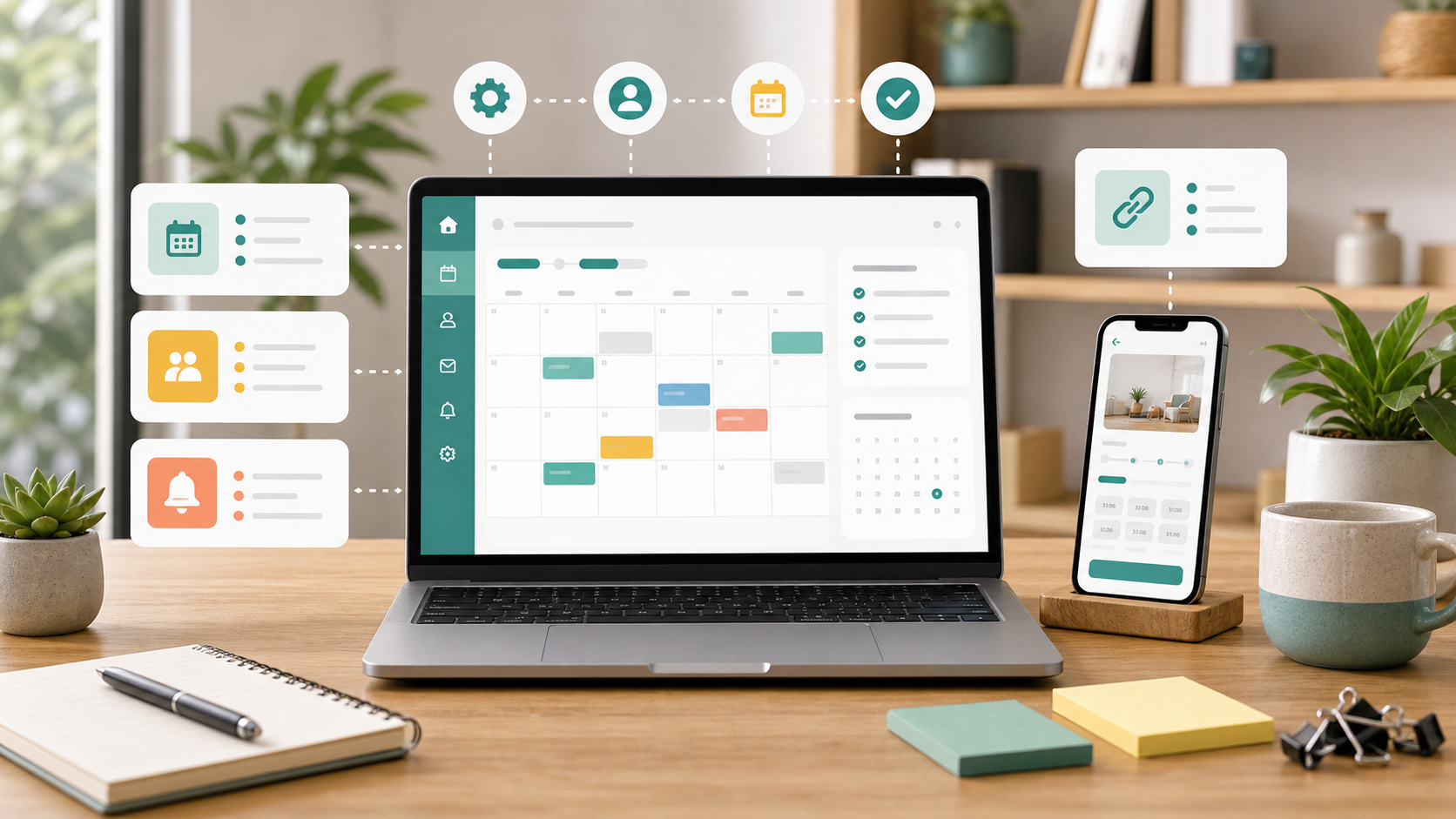
A small business booking system should cover more than one appointment type. In micali.online, the setup is split into focused areas so you can manage different parts of the customer journey without mixing everything into one calendar.
- Services: appointment-style bookings such as consultations, treatments, lessons or repair slots.
- Events: classes, workshops and sessions where multiple people can book the same time.
- Forms: intake questions and extra information collected during booking.
- Questionnaires: follow-up questions that can be attached to services or events.
- Message templates: reusable wording for confirmations, reminders, cancellations, waitlist updates and payment reminders.
- Email / SMS: delivery settings for notifications and reminders.
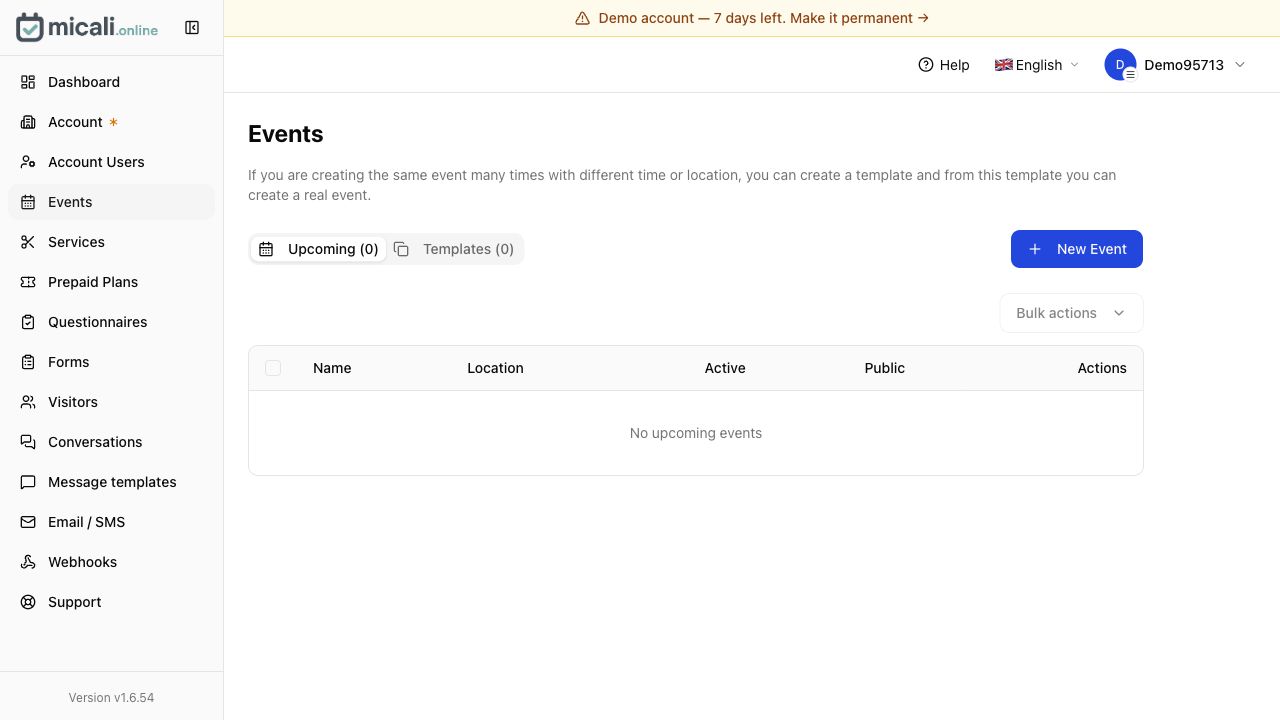

This matters because many small businesses do not fit into one simple appointment pattern. A tutor may need services and forms. A studio may need events, waitlists and reminders. A clinic may need intake questions and clear message templates. The system should let each workflow stay simple instead of forcing everything into the same booking type.
How this maps to micali.online
If you want the micali-specific walkthrough, use our step-by-step guide to starting with micali.online. It shows the exact order: demo, account, email verification, service or event, message templates, times, visitors and share links.
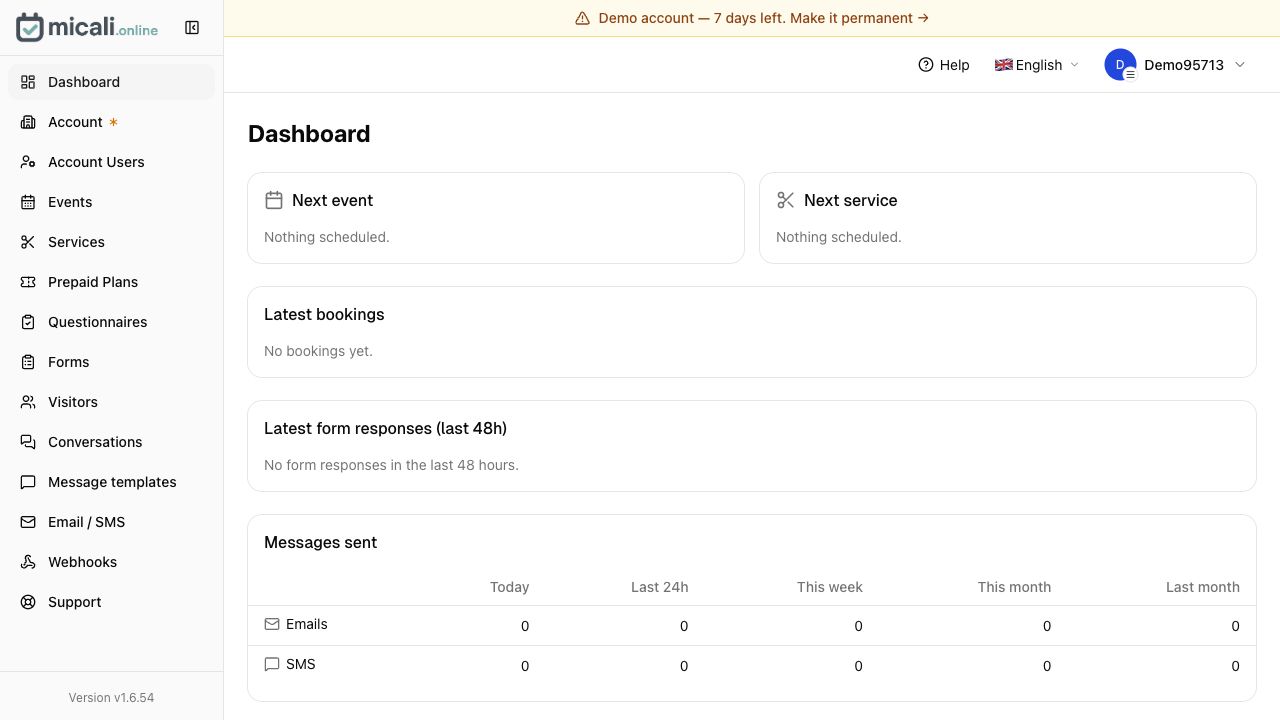
In micali.online, the same setup is split into practical sections. Use Služby for appointment-style offers, Udalosti for classes and workshops, Formuláre for information you need before booking, Šablóny správ for confirmation and reminder wording, and Email / SMS for delivery settings.
The demo account is useful because you can explore this flow without registration. That makes it easier to test the structure before committing to your final booking page.
A simple launch checklist
- List your core services or events.
- Set realistic durations.
- Publish only availability you can keep.
- Add a short booking form.
- Write confirmation and reminder messages.
- Add a cancellation rule.
- Test one booking from a phone.
- Share the booking link publicly.
- Review no-shows and abandoned bookings after two weeks.
Bottom line
Online booking works when the whole flow is clear: what the customer can book, when they can book it, what details they need to provide and what happens after they click confirm.
Start with a simple setup, test it with real customers, then improve the parts that create friction. A clean booking page with good reminders will usually do more for a small business than a complicated system full of features nobody uses.